
WHMCS Module
Automates cPanel/WHM hosting accounts in WHMCS. It gives clients 31 cPanel management pages and 6 one-click logins inside the WHMCS client area, and gives admins a dedicated management addon.
How It Works
1
Provisioning
Handles provisioning, the client area and hooks. Shown in WHMCS as “cPanel Extended (Group44)”.
2
Admin
Holds the Dashboard, Products, Servers, Accounts, Queue, Translations, Theme and Settings pages. Shown as “cPanel Extended”.
3
Data
Both share one set of database tables (mod_cpext_*), so product settings survive reactivation.
modules/servers/g44cpanel
modules/addons/cpextmanager
g44cpanel-whmcs-1.3.1.zip
Features
Create, Suspend, Unsuspend and Terminate accounts. Change Package and Change Password. Usage sync of disk and bandwidth into WHMCS.
Clients manage their whole cPanel account from the WHMCS product page, without opening cPanel.
cPanel, File Manager, phpMyAdmin, Sitejet Builder, Webmail and WordPress Toolkit, each opening in a new tab.
Softaculous or Installatron: install, upgrade, back up, restore and uninstall. Clone and staging work with Softaculous.
Auto-install the product’s default application, or let the client pick the application while ordering through a configurable option.
Options such as Disk Space, Bandwidth, Email Accounts, MySQL Databases and Shell Access override the limits automatically.
Existing WHM accounts import through Utilities → Server Sync, matched on primary domain.
Clients see the module in their WHMCS language, and any wording can be changed through the Translations tool.
Colours, icon style, corner radius, icon size, custom CSS and “Powered by” toggle, with live preview.
Client Area
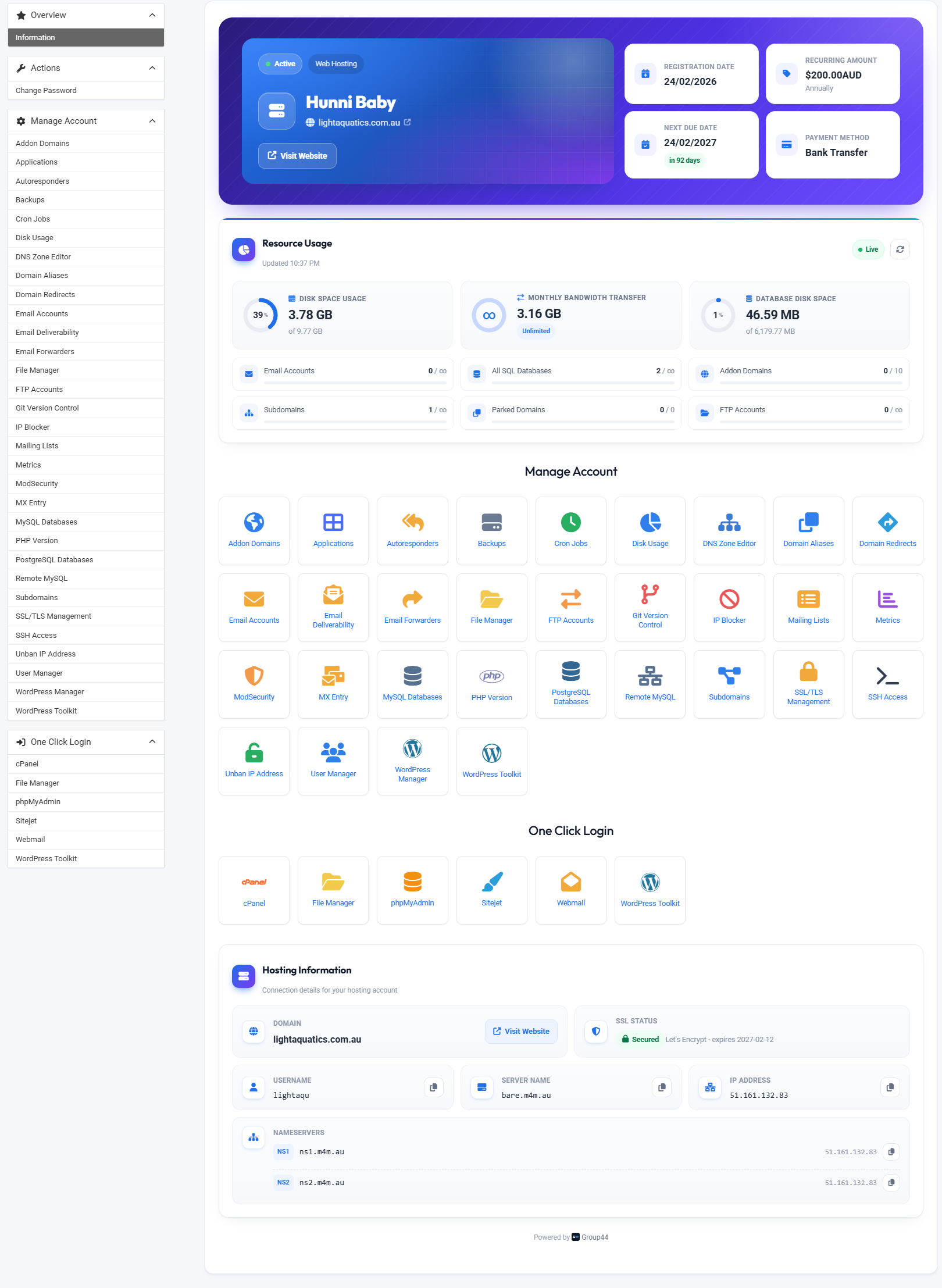
Status, product name, domain, Log In To cPanel, Webmail, Visit Website and Request Cancellation, plus cards for registration date, price, next due date with countdown, and payment method.
Ring gauges for disk, bandwidth and database space, and bars for account limits. Bars turn amber at 70% and red at 90%. A refresh button reloads live figures.
Manage Account tiles and One Click Login tiles, in grid or list layout.
Domain, live SSL status from the server, username, server, IP and nameservers with copy buttons, plus configurable options.
Overview, Actions, Manage Account and One Click Login panels.
Every table has search, sorting, 10/25/all paging and bulk actions on ticked rows.
Addon Domains, Subdomains, Domain Aliases, Domain Redirects, DNS Zone Editor and MX Entry.
Email Accounts, Email Forwarders, Autoresponders, Mailing Lists and Email Deliverability.
File Manager, FTP Accounts, MySQL and PostgreSQL Databases and Remote MySQL.
SSL/TLS Management, ModSecurity, IP Blocker, SSH Access, Cron Jobs, PHP Version, Git Version Control and more.
Screenshots
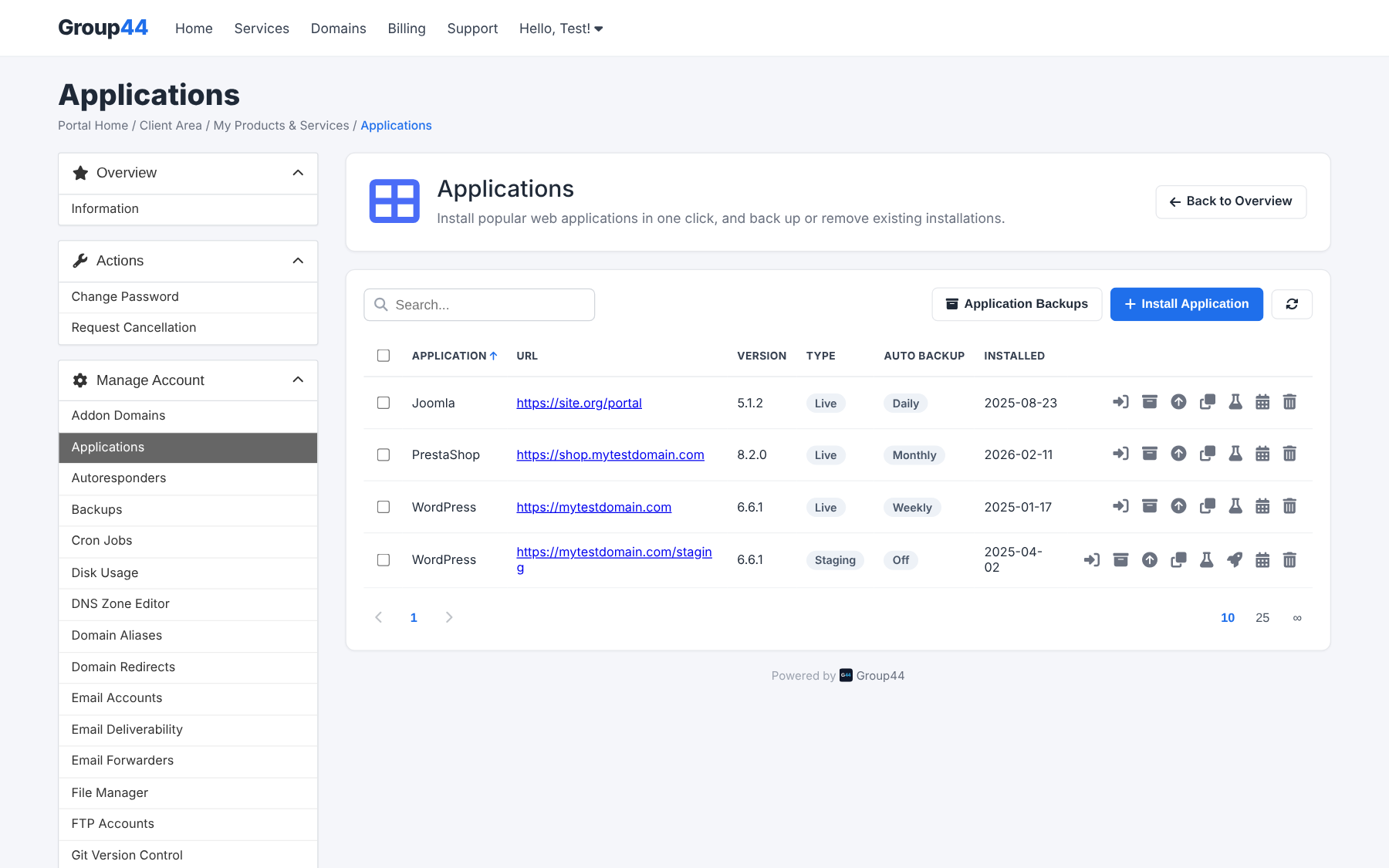
Install new applications, view installed apps, log in in one click, upgrade, back up and uninstall.
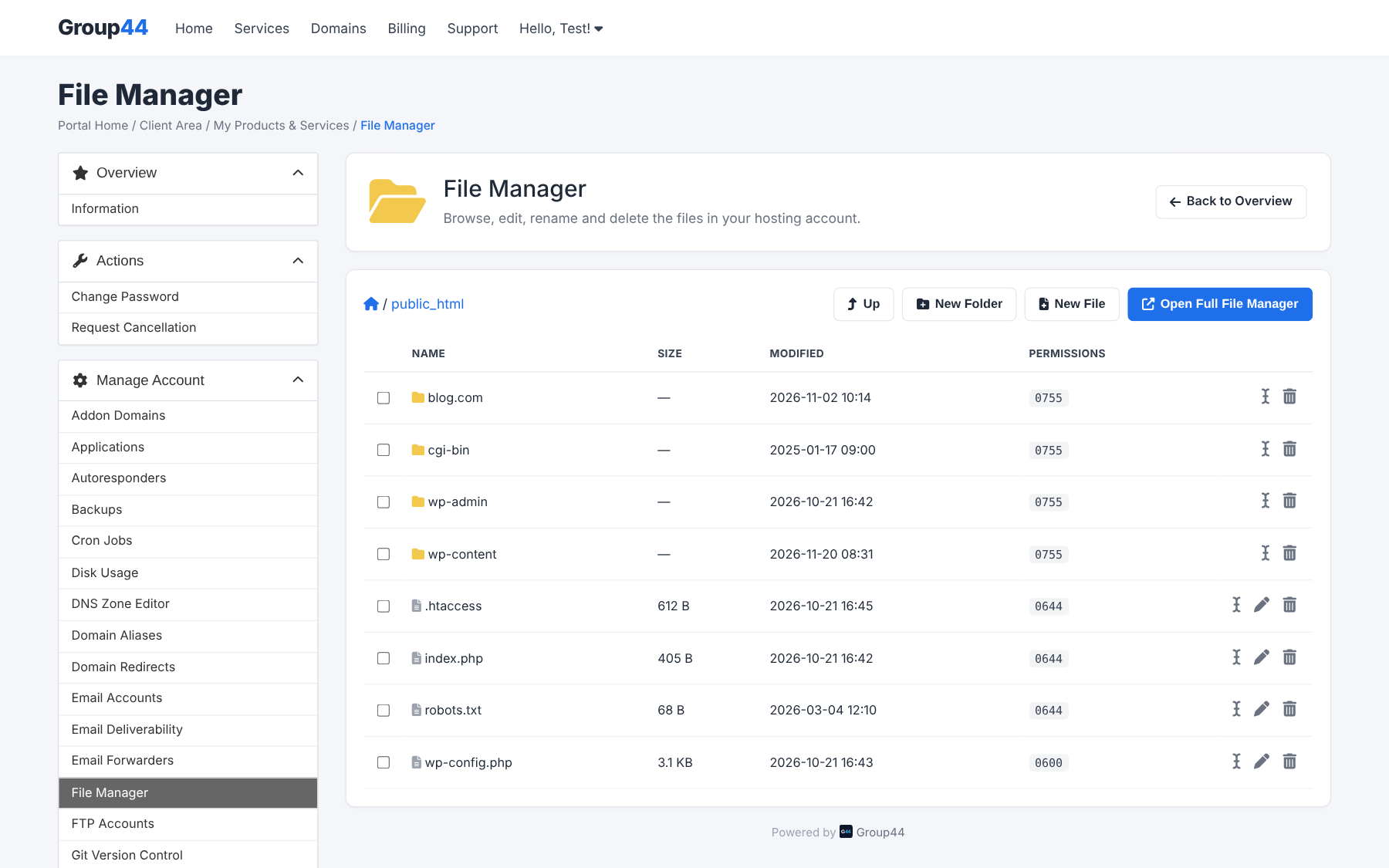
Browse, new folder, new file, edit, rename, delete to trash, or open the full cPanel File Manager.
Requirements
9.0 to 9.1. Newer versions show as “Untested” on the dashboard but are not blocked.
8.2, 8.3 or 8.4. Older than 8.2 blocks activation.
15 or later. Required; older or missing blocks activation.
cURL, JSON, mbstring and OpenSSL. All required.
Six, Twenty-One and Nexus. Custom themes based on these also work.
Current releases. A WHM API token is recommended over a password.
Softaculous or Installatron. Clone and staging need Softaculous.
LVE Manager + PHP Selector. Needs root SSH access to each server.
The addon checks all requirements when activated. See Addons → cPanel Extended → Dashboard → System Requirements.
The package ships as readable source. ionCube encoding is done separately with your own Encoder 15.
Installation
Upload the files, activate the addon, add your WHM server, then point a product at the module.
1
Unzip g44cpanel-whmcs-1.3.1.zip and upload the modules folder to your WHMCS root directory, merging it with the existing folders
2
In WHMCS go to System Settings → Addon Modules, click Activate next to cPanel Extended, then Configure and tick your admin role under Access Control
3
In WHM go to Development → Manage API Tokens and create a token for root (or a reseller)
4
In WHMCS go to System Settings → Servers → Add New Server, using the settings shown, then click Test Connection
5
Edit a hosting product under System Settings → Products/Services. On Module Settings choose cPanel Extended (Group44), your server group and a WHM package
6
Go to Addons → cPanel Extended → Products → Configure to choose client area features, template, initial limits, email settings, application installer, CloudLinux and backups
7
Check the WHMCS cron is running. The module’s background tasks run on the standard WHMCS cron
					# System Settings > Servers > Add New Server
Module:   cPanel Extended (Group44)
Hostname: your WHM server
Username: root (or the reseller)
Access Hash / API Token: your WHM API token
Secure (port 2087): ticked

# uploaded to the WHMCS root
modules/servers/g44cpanel
modules/addons/cpextmanager
Product Setup
Module: cPanel Extended (Group44). Server Group: the group holding your server. WHM Package: picked from a list loaded live from WHM. Dedicated IP: optional.
General, Client Area Features, Account Initial Settings, Email Settings, Applications, CloudLinux and Backups tabs. Any product’s settings can be copied to other products in one save.
CloudLinux only: click SSH next to each server in Addons → cPanel Extended → Servers and enter root SSH details, stored encrypted. Link accounts already on the server with Utilities → Server Sync.
Upgrading: upload the new modules folder over the old one, then press Ctrl+F5 on a client product page to load the new styles and scripts. Settings and data are kept.
Admin Area
Log in on click for cPanel, Webmail and WHM. Account Summary read live from WHM. Latest background tasks for the service.
Account and task counts, System Requirements check, and all cPanel and cPanel Extended products and servers in one place.
Every cPanel Extended account with disk and bandwidth use, plus one-click cPanel and Webmail login.
View, run, retry, delete or bulk-process background tasks.
Test connection, log in to WHM, set CloudLinux SSH access.
Automatic IP unban (cPHulk and CSF), SSL verification and API logging.
$8.00 per month. Questions about the module? Contact our team. cPanel and WHMCS are trademarks of their owners. This module is not affiliated with or endorsed by cPanel or WHMCS.