
WHMCS Module
Lets WHMCS customers pay any invoice in cryptocurrency, straight into your CoinSpot (Business) account, and marks the invoice Paid automatically when the coins arrive.
How It Works
CoinSpot has no merchant checkout API, so the module works from your own account.
1
Show
It shows the customer your CoinSpot deposit address for the coin and network they choose.
2
Watch
It then watches your CoinSpot receive history for the payment.
3
Paid
The invoice is marked Paid automatically when the coins arrive.
There is no third-party payment processor.
No extra fees beyond CoinSpot’s own.
No manual reconciliation.
Features
Offer every coin CoinSpot lists (set Accepted Coins to ALL) or a chosen list. Each coin shows all its deposit networks, for example USDT on ERC20, TRC20 or BEP20.
The invoice amount is converted at CoinSpot’s live AUD price and locked for 30 minutes (configurable), with an optional markup.
Each invoice gets a slightly different crypto amount, so a payment to your shared deposit address can be matched to exactly one invoice.
Payments are checked on every WHMCS cron run, every 20 seconds while the customer waits on the invoice, and on an optional one-minute cron URL.
USD and other invoice currencies convert to AUD automatically. AUD does not need to be set up in WHMCS.
Coins that need a memo or destination tag (XRP, XLM and others) show it with a clear warning.
A full-width card with coin search, network buttons, QR code, copy buttons, a countdown and a live status, on desktop and mobile.
Each CoinSpot receipt can be credited only once. Payments that can’t be matched are listed for you to apply by hand, never guessed.
A crypto quotes table on every admin invoice, gateway and module logs, and a diagnostics page that tests your setup.
Client Area
Customers pay in three steps on the invoice page, and the page updates itself when the payment arrives.
1
Step 1
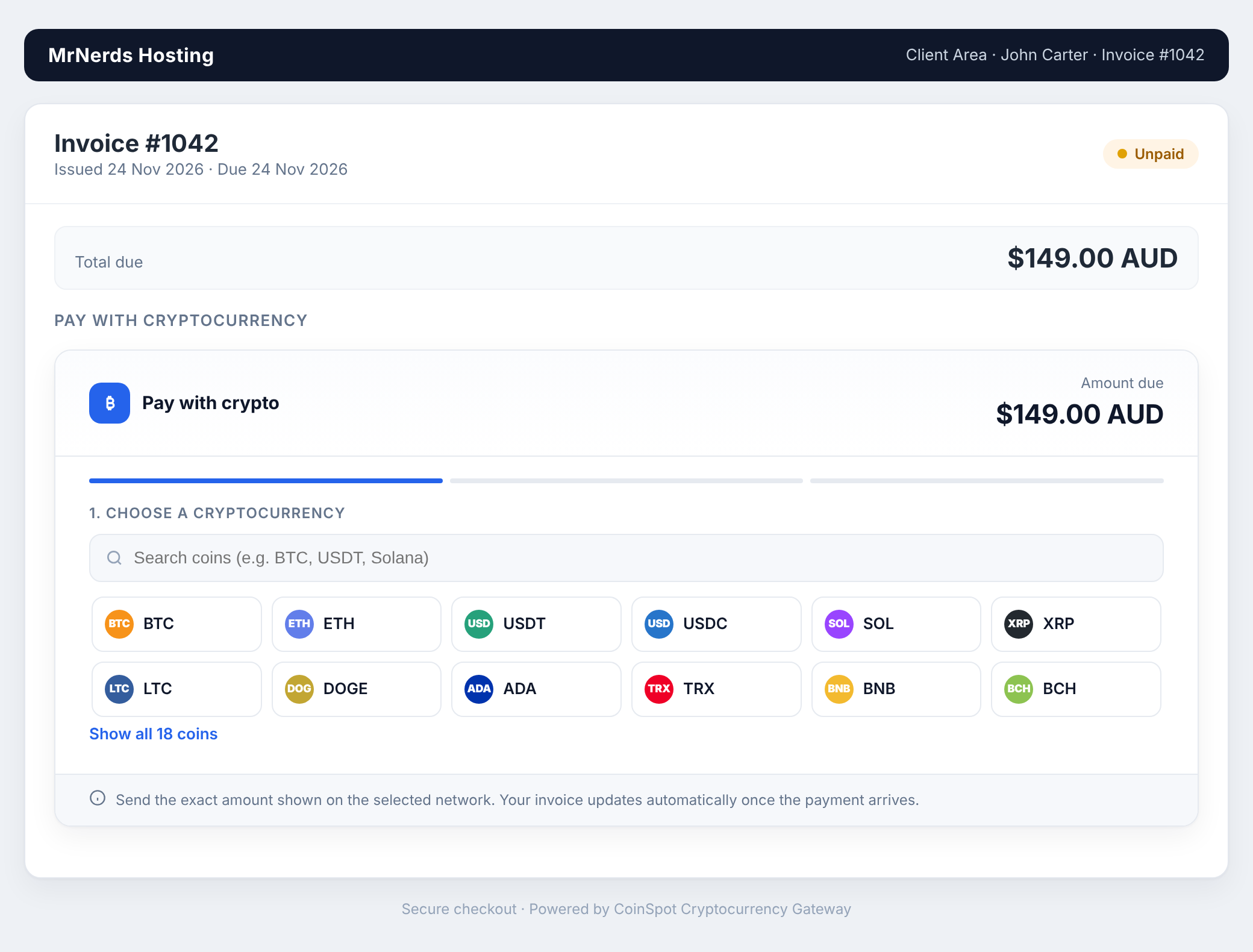
When the invoice’s payment method is CoinSpot, a full-width “Pay with crypto” card appears with the amount due. The most popular coins show first, with a search box and a “Show all” link when every CoinSpot coin is offered.
2
Step 2
Coins with more than one network (for example USDT on ERC20, TRC20 or BEP20) show a button for each. Coins with a single network skip this step.
3
Step 3
The module fetches the live rate and shows the exact amount to send and your CoinSpot deposit address, with a QR code. Copy buttons, a rate-lock countdown and a live “Waiting for your payment” status are included.
4
Done
The card shows a green tick and “Payment received”, then the page reloads to show the invoice as Paid.
The exact amount to send, with its value in the invoice currency and AUD, and the rate used.
The memo or destination tag, when the coin needs one, with a red warning.
A warning to use only the selected coin and network, and to cover wallet fees.
A countdown bar for the rate lock, which turns amber in the last two minutes.
The customer can get a new quote with one click, and a payment already sent is still detected.
If only part of the amount arrives, the card shows the remaining balance and a link to pay the rest.
On phones, the card stacks into a single column, long addresses wrap neatly and the Copy buttons stay easy to tap. On wide screens the details sit on the left and the warnings, countdown and status on the right.
Screenshots
The screenshots use sample data.
A full-width “Pay with crypto” card appears with the amount due. The most popular coins show first, with a search box and a “Show all” link when every CoinSpot coin is offered.
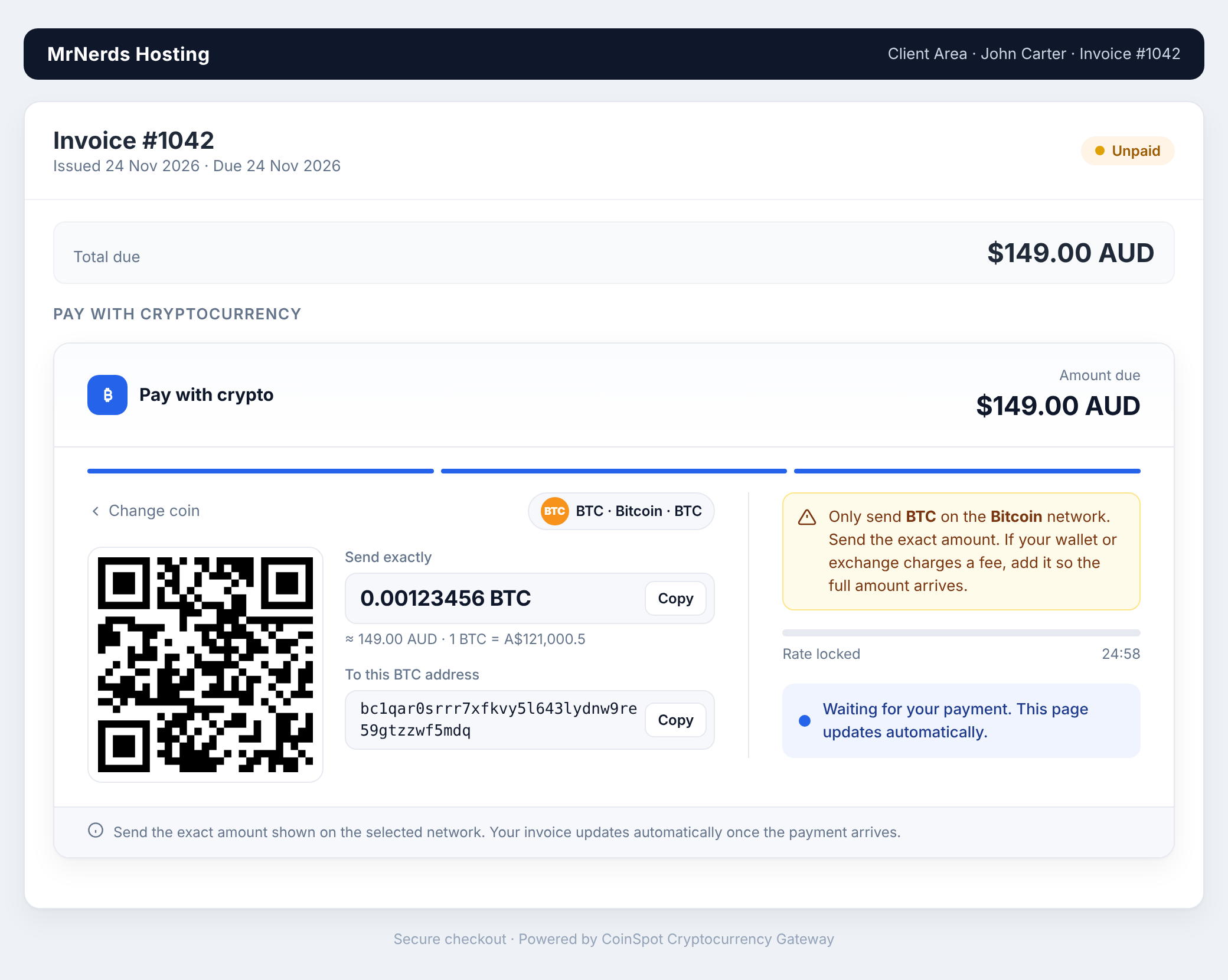
The exact amount to send, your CoinSpot deposit address with a QR code, Copy buttons, a rate-lock countdown and a live “Waiting for your payment” status.
Matching
CoinSpot gives every customer the same deposit address for a coin, so the module tells payments apart by amount.
Each quote adds a tiny unique offset to the crypto amount (between 1 and 999 units of the coin’s last decimal place, for example a few satoshi for BTC), and no two open quotes for the same coin share an amount.
A payment that matches no quote is never guessed: it waits for you on the admin invoice page.
Every receipt is fingerprinted, and its transaction ID (CS- plus 24 characters) is checked against WHMCS before a payment is added, so a receipt can never be credited twice.
Checked on every run (normally every 5 minutes).
Checked every 20 seconds, at most once per 20 seconds site-wide.
As often as you schedule it, for example every minute.
Invoice paid in full at the locked rate.
Invoice paid in full at the locked rate.
Credited at the AUD value on receipt (from CoinSpot, or the live price), converted to the invoice currency.
Not applied. Listed on admin invoices as an unmatched receipt for you to add by hand.
Not applied. Logged in the Gateway Log for manual review.
Kept for 7 days, so a late payment is still found. When an invoice is paid, its other open quotes are closed.
CoinSpot prices coins in AUD. For invoices in another currency, the module finds the AUD rate in this order: a fixed rate from the settings; WHMCS currency rates (if AUD is set up in WHMCS); for USD, CoinSpot’s live USDC and USDT prices; for other currencies, WHMCS rates to USD, then USD to AUD; finally a public exchange-rate feed (open.er-api.com). Live rates are stored for an hour. Payments are always credited in the invoice’s own currency.
Admin Area
Everything the module does is visible in WHMCS admin.
A CoinSpot Crypto Quotes table: when each quote was created, the coin and network, the amount expected and received, the value in the invoice currency, the status (Pending, Paid or Void, plus “rate expired”) and the transaction ID.
Recent unmatched CoinSpot receipts lists coins received in the last 14 days that didn’t match any quote, with the time, amount, AUD value and sender. If one belongs to the invoice, add it with Add Payment.
Open it from the gateway settings (Run diagnostics / test addresses). It only works for logged-in admins.
Every payment applied (coin, network, amounts, value credited, rate type) and any receipt needing manual review.
Sync summaries, sync errors, and the reason a coin has no deposit address.
Every CoinSpot API call and response, when module logging is turned on (secrets are hidden).
Whether the Read Only key connects, and whether a Full Access key is entered.
The Manual Wallet Addresses as the module reads them, and CoinSpot’s raw deposit-address response (both API versions).
The addresses customers will be offered, or the exact reason there are none.
The exchange rate to AUD for each WHMCS currency, and the coins customers will see on invoices.
Requirements
Version 8.x.
7.4 to 8.3, with the cURL extension.
MySQL or MariaDB (the WHMCS database; tables are created automatically).
Running normally (every 5 minutes is the WHMCS default).
A CoinSpot account (Business or personal) with API access.
A Read Only key (required) and optionally a Full Access key.
Outbound HTTPS to www.coinspot.com.au and open.er-api.com.
Created on first load: mod_coinspot_requests, mod_coinspot_receipts, mod_coinspot_addresses and mod_coinspot_settings.
whmcs-coinspot-gateway.zip, including the Group44 logo shown in the admin area.
Installation
Create API keys, upload the files, activate the gateway, then test with a small invoice.
1
In CoinSpot open Settings → API Keys and create a Read Only key. Copy the key and secret somewhere safe. Optionally create a Full Access key, only used to look up your deposit addresses automatically
2
In CoinSpot open Deposit for each coin you want to accept, choose the network, and click Generate Deposit Address if none is shown. Do this once per coin and network
3
Unzip whmcs-coinspot-gateway.zip and upload the modules and includes folders to your WHMCS root folder (the one with configuration.php), merging with the existing folders
4
In WHMCS admin go to System Settings → Payment Gateways, open All Payment Gateways and click CoinSpot Cryptocurrency. Optionally change the Display Name
5
Enter your settings: the Read-Only API Key and Secret, then Accepted Coins, Manual Wallet Addresses and the other options. Click Save Changes
6
Click Run diagnostics / test addresses while logged in as an admin, and fix anything marked PROBLEM before going live
7
Optional: add a one-minute cron in cPanel → Cron Jobs, protected by a random External Cron Token, for confirmations within about a minute after the customer closes the page
8
Test with a small invoice (for example $5): pick a coin and network and send the exact amount from another wallet. The invoice should turn Paid within about 20 seconds
					# uploaded to the WHMCS root
modules/gateways/coinspot.php
modules/gateways/coinspot/lib/CoinSpotApi.php
modules/gateways/coinspot/lib/Helper.php
modules/gateways/callback/coinspot.php
includes/hooks/coinspot.php
modules/gateways/coinspot/assets/group44-logo.png

# Manual Wallet Addresses (one per line)
LTC|ltc1qxxxxxxxxxxxxxxxxxxxxxxxxxxxx
BTC|BTC|bc1qxxxxxxxxxxxxxxxxxxxxxxxxxxxx
USDT|TRC20|TXxxxxxxxxxxxxxxxxxxxxxxxxxxx
USDT|ERC20|0xxxxxxxxxxxxxxxxxxxxxxxxxxxxxxx
XRP|XRP|rxxxxxxxxxxxxxxxxxxxxxxxxxx|12345678
Settings
Defaults shown for each setting.
Default ALL, for every CoinSpot coin, or a list such as BTC, ETH, USDT, USDC, SOL, XRP, LTC, DOGE.
One per line: COIN|ADDRESS, or COIN|NETWORK|ADDRESS|MEMO. Overrides the API. Without a Full Access key, only coins listed here are offered.
Default Bid. Bid is safest: it’s the price you’d get if you sold the coins. Last traded and Ask are also available.
Default Automatic. Uses WHMCS rates if AUD is set up there, otherwise live rates.
Optional fixed rates, AUD per 1 unit, for example USD=1.53, NZD=0.91.
Default 0. Optional buffer added to the crypto amount for price swings.
Default 30. How long a quoted crypto amount is valid.
Default 60. Payments up to this long after expiry still get the locked rate.
Default 0.5. Payments within this % of the quote count as paid in full.
Default On. Shows a scannable QR of the wallet address.
Preset text, shown at the foot of the payment panel.
Optional. A random password that protects the one-minute cron URL.
FAQ
The module only uses it to read deposit addresses, never to trade or withdraw. If you’d rather not store one, leave it blank and use Manual Wallet Addresses; the module works fully with a Read Only key.
The payment page asks customers to add any fee so the full amount arrives. A shortfall within the Amount Tolerance % (0.5% by default) still counts as paid in full; anything larger shows as unmatched for you to apply by hand.
The quote is locked for the Rate Lock period plus the Late Grace period (90 minutes in total by default). After that, a payment is credited at its AUD value on receipt, and WHMCS keeps any balance owing.
Refunds aren’t automatic; send them from your CoinSpot account and record the refund in WHMCS.
Yes. The panel’s styles are self-contained and override theme styles inside the card, and it fits narrow or full-width invoice layouts.
Invoices can be in any WHMCS currency; customers pay in any coin you accept, and the payment is credited in the invoice currency.
Branding: the Group44 logo and copyright appear in three admin places only. Customers never see this branding; the payment panel on invoices stays unbranded.
$6.50 per month. Questions about the module? Contact our team. CoinSpot and WHMCS are trademarks of their owners. This module is not affiliated with or endorsed by CoinSpot or WHMCS.