
WHMCS Module
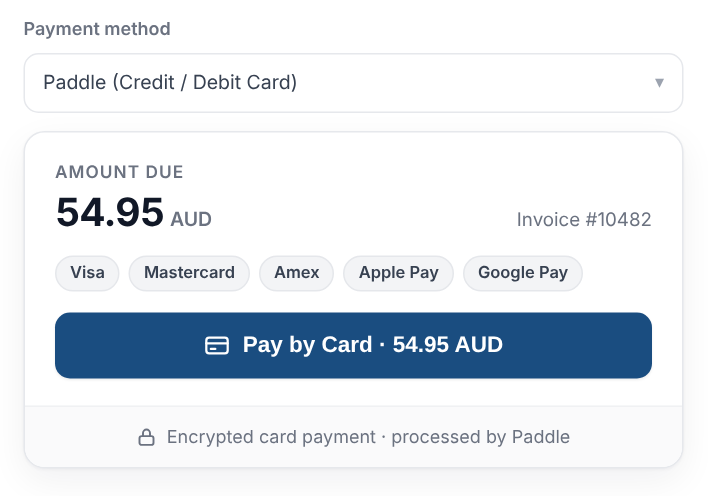
The Paddle Billing Gateway lets WHMCS customers pay any invoice by credit or debit card through Paddle, charging exactly the invoice balance with no Paddle product or price setup. Paddle acts as Merchant of Record, collecting the card payment and handling sales tax, while WHMCS marks the invoice Paid automatically.
$9.95 Per Month
Overview
Paddle (Credit / Debit Card) · system name paddle
1.2.0
Paddle Billing API (api.paddle.com, Paddle-Version: 1) + Paddle.js v2 checkout
WHMCS third-party payment gateway (no card data stored in WHMCS)
Group44 Pty Ltd · www.group44.com.au
whmcs-paddle-gateway-v1.2.0.zip
Compatibility
Version 1.2.0 targets PHP 8.2–8.4, MySQL 5.2 through 8.0 and ionCube Loader 15.0.0.
8.2, 8.3, 8.4. Nullable parameters written explicitly (?string $x = null), as PHP 8.4 deprecates implicit nullables. No dynamic properties, no ${} string interpolation, no utf8_encode/E_STRICT. Every internal call casts possible nulls to string. curl_close() only runs below PHP 8.0, as it is a no-op since 8.0 and deprecated in 8.5.
MySQL 5.2+ to 8.0, MariaDB 10.x. Tables use InnoDB and DATETIME columns (no TIMESTAMP defaults, which fail under strict mode on MySQL 5.x). Indexed text columns are 64 characters or less, inside the 767-byte index limit of MySQL 5.5/5.6 with utf8mb4. No JSON columns or window functions.
15.0.0+. Plain procedural and class code: no eval, no reflection on file paths, includes resolved with __DIR__. The module runs unencoded; ionCube is only needed if you encode it.
8.x and 9.x (9.1.1 recommended). Uses only the standard gateway API: _config, _config_validate, _link, _refund, _TransactionInformation, and Capsule for the database.
cURL with OpenSSL, JSON (required); mbstring (recommended). Falls back to substr() when mbstring is missing.
Open the gateway’s settings page and expand System compatibility check to see each item detected on your server with a pass or fail mark: PHP version, cURL and OpenSSL, JSON, mbstring, ionCube Loader version, MySQL or MariaDB version, and WHMCS version.
WHMCS itself sets the real database floor. WHMCS 9 needs MySQL 8.0 or MariaDB 10.x, so MySQL 5.x applies only to older WHMCS 8 installs.
Features
Payment Flow
An invoice is paid in one visit: the card form sits on the invoice, and two independent checks confirm the payment before WHMCS records it.
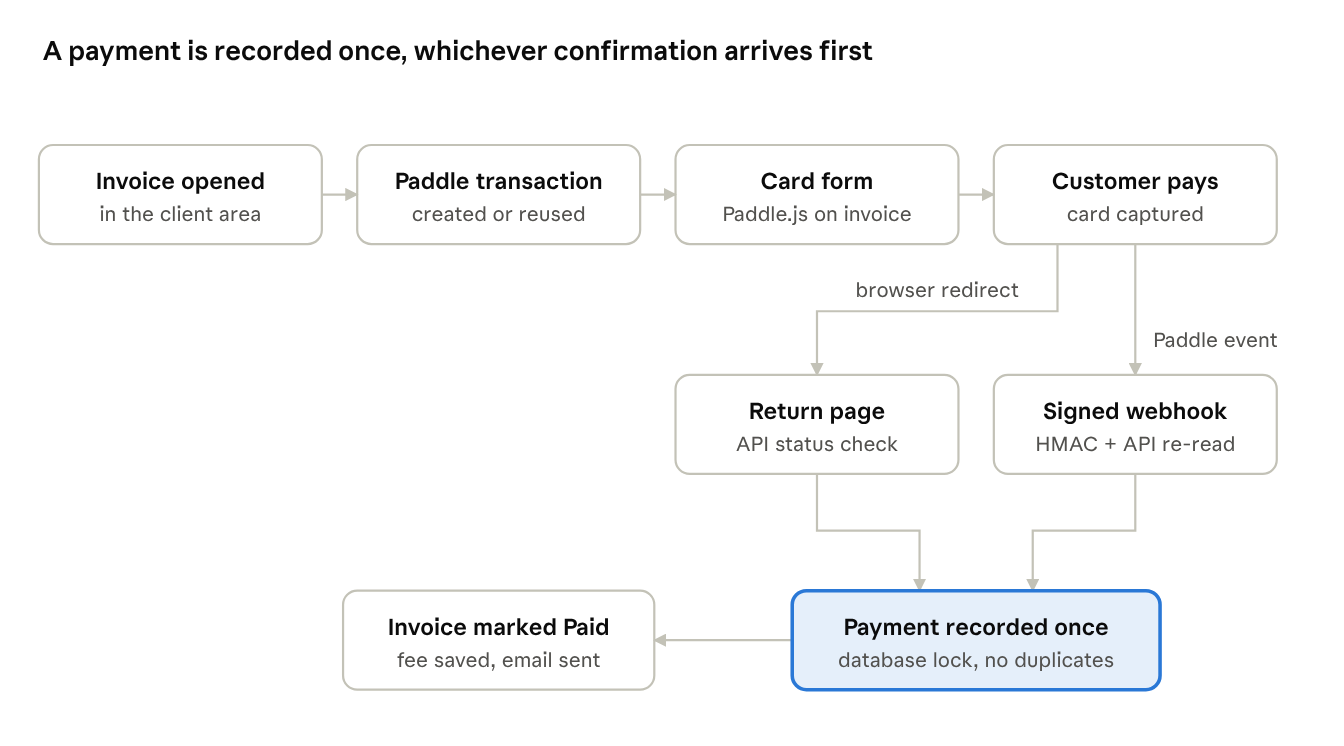
8 steps, 2 confirmation paths.
The return page and the webhook both confirm with Paddle’s API; whichever arrives first records the payment and the other is ignored. If the customer closes the browser before the redirect, the webhook still marks the invoice Paid.
Installation
Setup takes three parts: upload the files, prepare Paddle, then activate and configure the gateway in WHMCS.
1
Upload the zip’s modules/ folder to the WHMCS root. That gives you modules/
2
Optional: add your logo as modules/
3
In the admin area (your staff/ folder) go to System Settings → Payment Gateways → All Payment Gateways and activate Paddle (Credit / Debit Card). The module’s two database tables are created automatically on first use.
4
Expand System compatibility check on the settings page and confirm every row shows OK.
1
Go to Developer Tools → Authentication and create an API key with read and write access to Customers, Addresses, Transactions and Adjustments. Live keys start with pdl_live_apikey_; sandbox keys start with pdl_sdbx_apikey_.
2
On the same page, create a client-side token. Live tokens start with live_; sandbox tokens start with test_.
3
Under Checkout → Checkout settings, set a default payment link on your WHMCS domain, e.g. https://my.vpsnerds.com/
4
Under Developer Tools → Notifications, add a destination with URL https://YOUR-WHMCS/
5
Paste the key, token and webhook secret into the gateway settings in WHMCS and save. The module tests the key against Paddle when you save.
6
Repeat steps 1–5 in the sandbox at sandbox-vendors.paddle.com for testing. The sandbox test card is 4242 4242 4242 4242, any future expiry date, CVC 100.
Configuration
The gateway has 21 settings. Only the environment, API key, client token and webhook secret are needed to take payments.
Options: Live · Sandbox. Default: Live. Which key set is used for new checkouts.
Format: pdl_live_apikey_… Default: —. Server-side calls to Paddle.
Format: live_… Default: —. Loads the Paddle.js card form.
Format: Paddle notification secret. Default: —. Verifies live webhooks.
Format: pdl_sdbx_apikey_… Default: —. Server-side calls in sandbox.
Format: test_… Default: —. Card form in sandbox.
Format: Paddle notification secret. Default: —. Verifies sandbox webhooks.
Options: Inline · Overlay. Default: Inline. Embedded form or pop-up.
Options: Card only · Card + Apple/Google Pay · All. Default: Card only. Methods offered in checkout.
Options: Includes tax · Paddle adds tax · Account default. Default: Includes tax. Whether the charge equals the WHMCS balance.
Options: Standard, Website hosting, SaaS, and 6 more. Default: Standard. Non-standard categories need Paddle approval.
Format: Text with {invoice} {company}. Default: Invoice #{invoice}. Item name on checkout and receipt.
Format: https URL. Default: blank. Optional image beside the item.
Options: Yes / No. Default: Yes. Copies the client’s details to Paddle.
Options: Light · Dark. Default: Light. Paddle form theme.
Format: e.g. en, de. Default: blank (auto). Paddle form language.
Format: Text. Default: Pay by Card. Button wording.
Format: Hex, e.g. #1a4d80. Default: #111827. Pay button colour.
Options: Yes / No. Default: No. Opens the form on page load.
Options: Yes / No. Default: Yes. Saves the fee on each payment.
Options: WHMCS currency. Default: N/A. Standard WHMCS option for currencies Paddle doesn’t support.
Refunds and Webhooks
Refunding from the WHMCS transaction screen sends a refund adjustment to Paddle. The full amount on a never-refunded payment becomes a full refund; anything else becomes a partial refund of the line item, scaled by tax. Only completed Paddle transactions can be refunded. Live refunds usually wait for Paddle’s approval, and sandbox refunds are approved about every 10 minutes. The approval or rejection then appears in the WHMCS Gateway Log.
Re-reads the transaction from the API, then records the payment once
Logs the failure and error code to the Gateway Log
Marks the stored transaction as cancelled
Logs refund status: pending, approved or rejected
Acknowledged with HTTP 200 so Paddle doesn’t retry
Links invoices to Paddle transactions. Key columns: invoice_id, txn_id (unique), environment, status, paddle_amount, whmcs_amount, applied, refunded
Links WHMCS clients to Paddle customers. Key columns: client_id + environment (unique), customer_id, address_id, address_hash
Security and Limits
Testing
Troubleshooting
Likely cause: Domain not approved or no default payment link. Fix: Set both in Paddle Checkout settings.
Likely cause: Wrong environment or missing permissions. Fix: Match key to environment; grant customers, addresses, transactions, adjustments.
Likely cause: Webhook not reaching WHMCS or wrong secret. Fix: Check the Paddle notification log and the Gateway Log for Invalid Signature.
Likely cause: Balance below Paddle’s minimum. Fix: Take that payment another way.
Likely cause: Paddle review. Fix: See the reason in the Paddle dashboard.
Fix: Turn on System Logs → Module Log to see every API call, with keys masked.
$9.95 per month. Questions about the module? Contact our team.